
Getting Started with Data Compare - Rons Data Compare
Rons Data Compare is an application for comparing and previewing differences between two CSV files. This document is intended to help users effectively update one CSV file based on the differences identified in another.
First Things First
Of course the first thing to do is download and install Rons Data Compare. This will give you the essential software needed to do the job.
Concepts
Each Rons Data Compare comparison is opened in a new tab within the main window. Each comparison contains two CSV files and represents a single comparison session used to transfer updates from one document to another.
When one document is compared to another, the columns are mapped (or aligned) between the two files. The values in those columns are then used to align the rows. Differences in columns, rows, and cells are displayed, along with navigation and update functions that help you review and apply changes.
Open a Compare
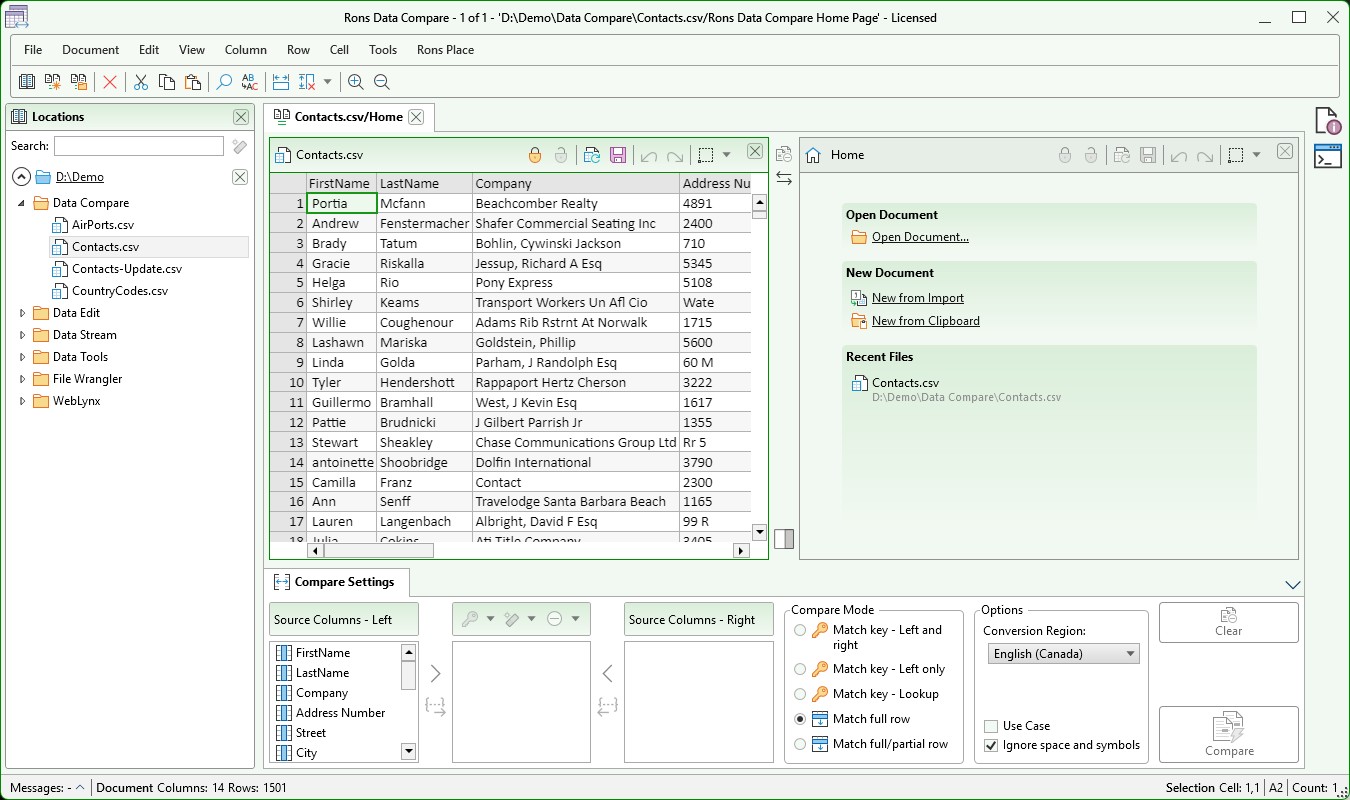
You can start by opening a blank comparison (New Comparison) and then opening the two CSV files you want to compare. Alternatively, you can open a CSV file using Open Comparison. This automatically creates a new comparison and opens the selected file on the left side.
You can also use the Location panel on the left side of the window to browse for and open CSV files directly.
Compare Settings
Once a comparison has been opened and both documents are loaded, the next step is to define how the documents will be compared.
Column Mappings
Rows are matched by comparing the values in mapped columns between the left and right files.
Column mappings identify which columns in the two files contain equivalent data. These mappings are required because the application uses them to match rows and determine where differences exist.
At least one column mapping must be defined between the files.
Key columns
Key columns are one or more columns that contain data used to uniquely identify a row.
Examples include a 'Catalog ID' in a product list or an 'Email address' in a contact list.
If one or more key columns are defined in Rons Data Compare and a 'Match Key - x' Compare Mode is selected, only the key columns are used to match rows between the left and right files.
Using key columns provides several advantages:
- Precision - Rows can be matched accurately and consistently.
- Speed - Looking up rows by key is typically much faster than comparing entire rows.
- Cell Differences - Once rows have been matched, the remaining mapped columns can be checked for differences at the cell level.
Compare Modes
| Mode | Description |
|---|---|
| Match Key - Left and right | Mapped key columns are used to do the row level compare. |
| All rows are included from the left and right. | |
| Match Key - Left only | Mapped key columns are used to do the row level compare. |
| All rows are included from the left and matching rows from the right. | |
| Match Key - Lookup | Mapped key columns are used to do the row level compare. |
| All rows are included from the left and lookup rows from the right. | |
| Match full row | All mapped columns are used to do the row level compare. |
| All rows are included from the left and right. | |
| Match full/partial row | All mapped columns are used to do the row level compare, with a secondary lookup to match similar ro |
| All rows are included from the left and right. |
For more detail on row matching in Rons Data Compare see Data Compare Row Comparison Explained.
The Details
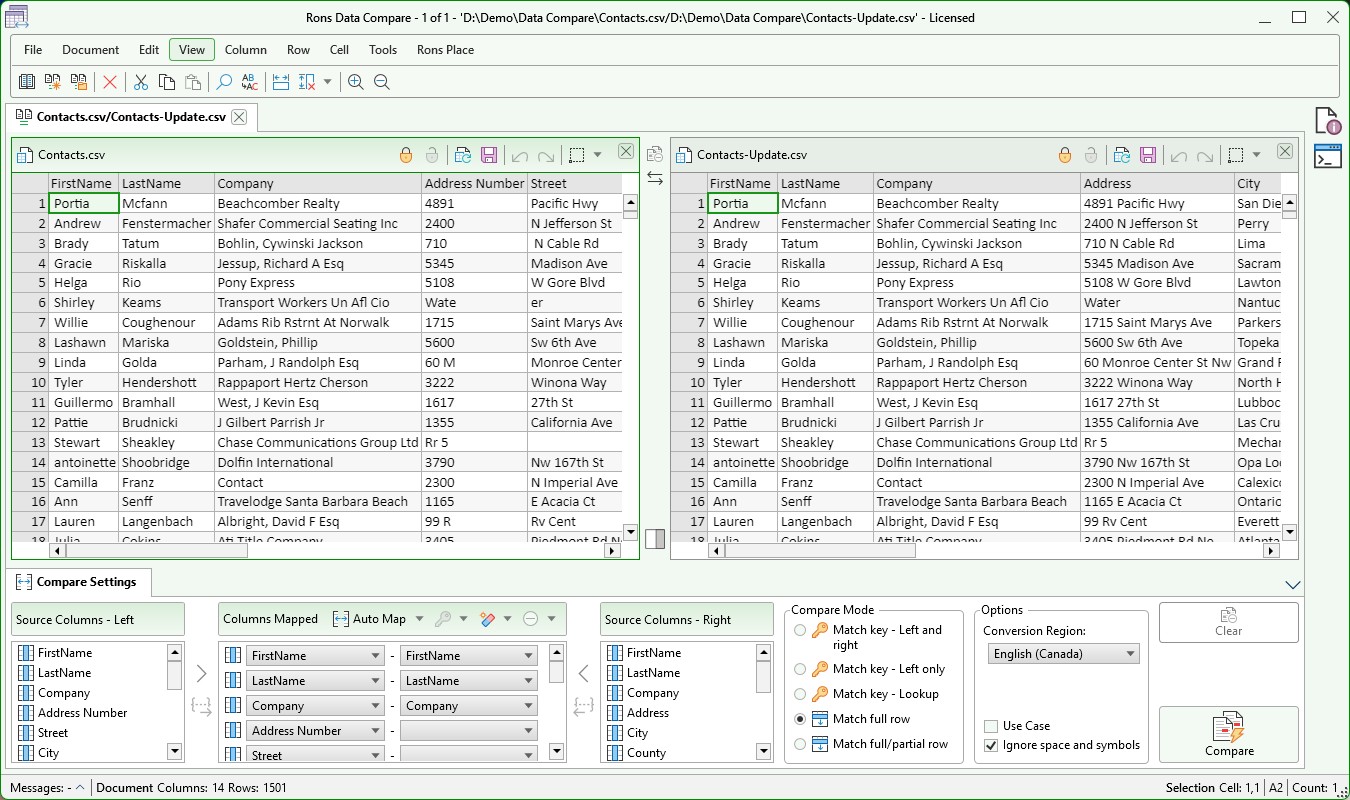
To quickly create a column mapping, use the Auto Map button. The available options are:
- Build Map from Names (default) - Matches columns based on their names.
- Build Map from Index - Matches columns based on their position within the files.
You can also manage mappings manually using the controls around the Columns Mapped list. Mappings can be added, edited, or removed as needed, although it is generally recommended to map all corresponding columns.
To designate key columns, select the appropriate mappings in the Columns Mapped list and choose Make Key Column. Key columns can be removed individually with Remove Key Column or all at once with Clear Key Columns.
The Comparison
When ready (or just to see what happens) press the Compare button.
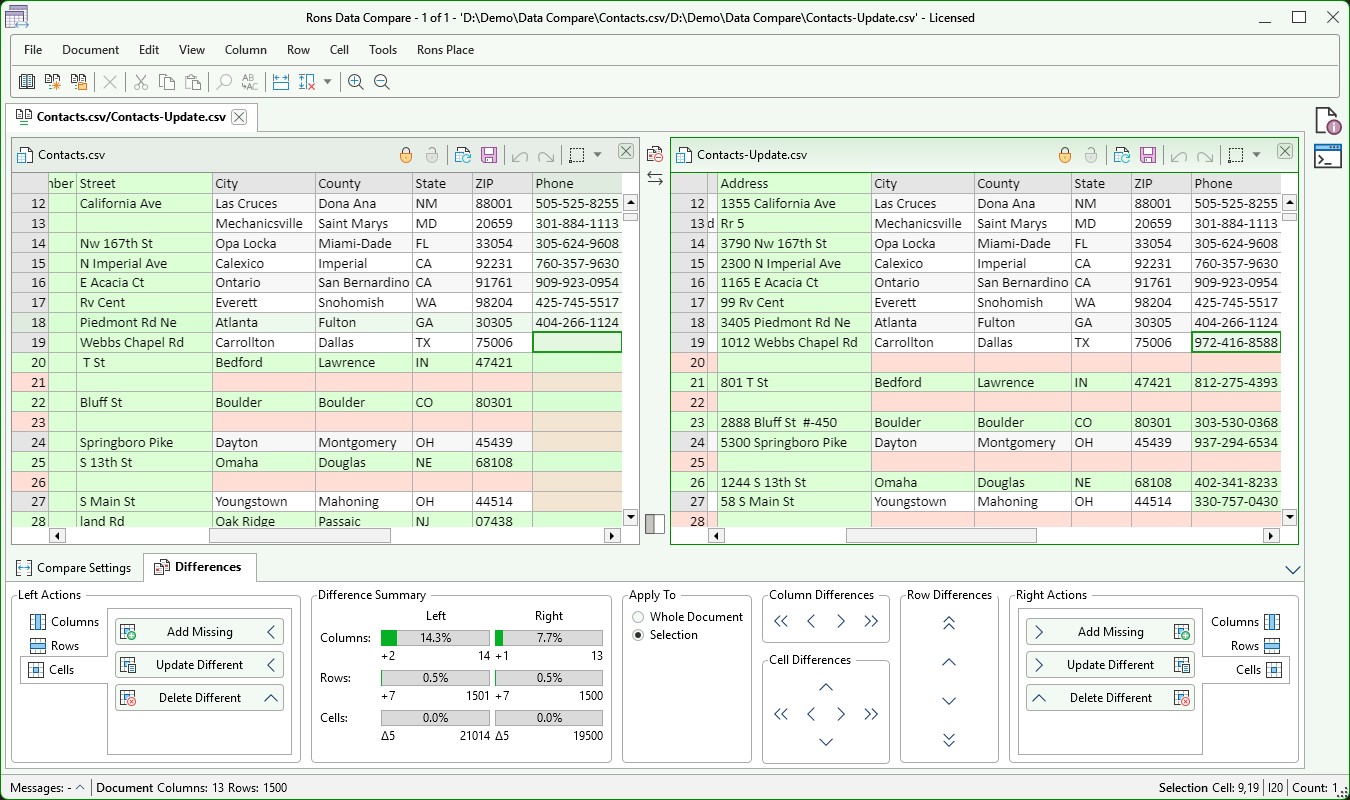
The two document views have now switched to Compare View. This view overlays the original documents and highlights differences in columns, rows, and cells between the two files. You can quickly remove the comparison overlay by clicking the Clear Compare button, allowing the underlying documents to be viewed and edited normally.
Part of the power of Rons Data Compare is that its comparison features are implemented as a lightweight layer over the underlying documents. This approach keeps the application fast, efficient, and easy to use.
The Differences tab is the primary work space for reviewing and managing differences between the two documents. The Actions panels on the left and right provide synchronization commands, while the Difference Summary displays the number of differences detected. The navigation panels make it easy to move between differences and review them efficiently.
Changes Detected and Navigation
After a compare is executed the display is updated to show differences in these ways:
- Columns - All columns from both documents are displayed. If a column is not mapped or does not exist in the document being compared, it is highlighted in green. This ensures that the displayed column count always matches the column count of the underlying documents.
- Row - Rows are matched by comparing the key columns or mapped columns, as described earlier. Matched rows are displayed without highlighting. If a row exists on one side but not the other, the existing row is highlighted in green and the corresponding missing row is highlighted in red. This approach ensures that the row count remains aligned on both sides of the comparison.
- Cells - When both the row and column match, cells with identical values are displayed without highlighting. Cells containing different values are highlighted in purple. If a cell contains a value on one side but is empty on the other, the populated cell is highlighted in green and the corresponding empty cell is highlighted in red. When rows or columns do not match, cell highlighting follows the row or column highlighting rules.
Navigating Between Changes
Navigation between changes is straightforward. Changes are grouped into the following categories:
- Column
- Row
- Cell
This allows each type of change to be reviewed independently.
Updates
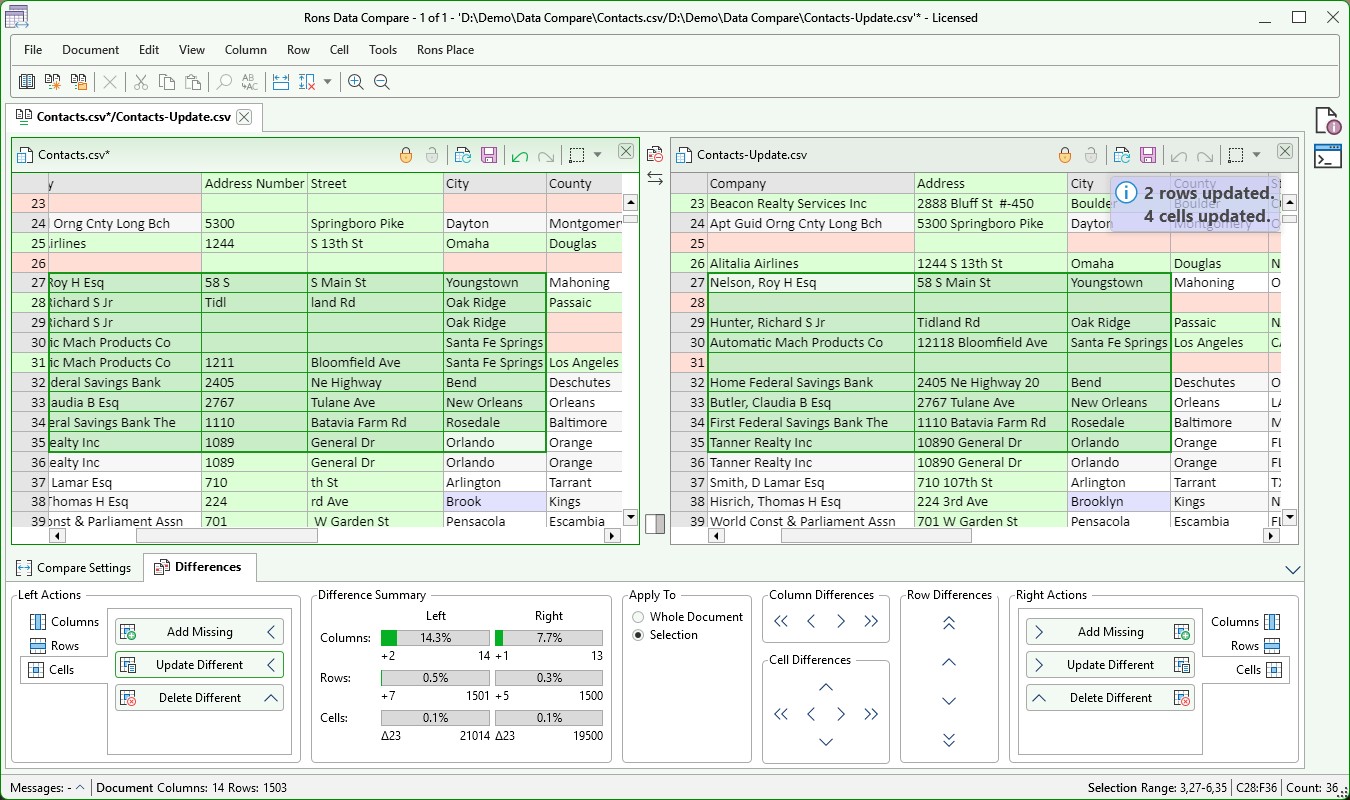
Updates can be applied to either the left or right document by selecting an action from the Actions panels located on either side of the Differences tab. The same commands are also available from the main menu and the column, row, and cell context menus.
The available actions are described below.
Column Actions
| Action | Target Document | Description |
|---|---|---|
| Add Extra (Filled) | Opposite | Adds the columns to the opposite document and copies all row values. |
| Add Extra (Empty) | Opposite | Adds the columns to the opposite document without copying any values. |
| Delete Extra | Associated | Deletes the extra columns from the associated document. |
Row Actions
| Action | Target Document | Description |
|---|---|---|
| Add Extra (Filled) | Associated | Adds the rows from the opposite document and copies all column values. |
| Add Extra (Key) | Associated | Adds the rows from the opposite document and copies only the key column values. |
| Add Extra (Empty) | Associated | Adds empty rows corresponding to the rows in the opposite document. |
| Delete Extra | Associated | Deletes the extra rows from the associated document. |
Cell Actions
| Action | Target Document | Description |
|---|---|---|
| Add Missing | Associated | Copies values from the opposite document into empty cells. |
| Update Different | Associated | Updates cells whose values differ from those in the opposite document. |
| Delete Different | Associated | Clears cells whose values differ from those in the opposite document. |
Action Direction
With the exception of the Column Add Extra actions, all commands update the document to which the action is applied by pulling data from the opposite document.
The Column Add Extra actions work differently. They update the opposite document by pushing the selected column to it. This behavior reflects the fact that column differences always represent extra columns that exist in one document but not the other.
Attachments
 Contacts-Update.csv
Related Information
Rons Data Compare


