
Overview - Rons Data Merge
What is Rons Data Merge?
Rons Data Merge is a Windows desktop application for taking tabular data—typically a CSV or similar delimited file—and merging it into text, HTML, email, or SQL. You supply the table and a template; the application fills the template once per row (or once for the whole lot, depending on the merge type) and writes the result to disk or sends it down the wire.
It is, in the most respectable sense, mail merge for people who are
allergic to Word and for developers who would rather generate a script
from a spreadsheet than transcribe five hundred INSERT statements by
hand.
A completed job is saved as a .merge file. That
file remembers the data source, templates, field mappings, and output settings,
so you can open the same project next quarter, swap in a fresh CSV, and run again
without rebuilding everything from memory.
Who Is It For?
- Anyone sending mail from a list — write one message, map To, From, and Subject to columns, and dispatch a copy for each row.
- People producing documents from a spreadsheet — turn a table into letters, HTML pages, or a neatly numbered folder of files.
- Developers loading data — generate an INSERT script, or a MERGE script, from rows you already have.
Your list, templates, and mail configuration stay on your machine. SMTP credentials and SendGrid API keys are stored with the merge; Outlook uses an account already configured on the computer. For a full feature list, see Rons Data Merge — Features.
Nine Ways to Merge the Same List
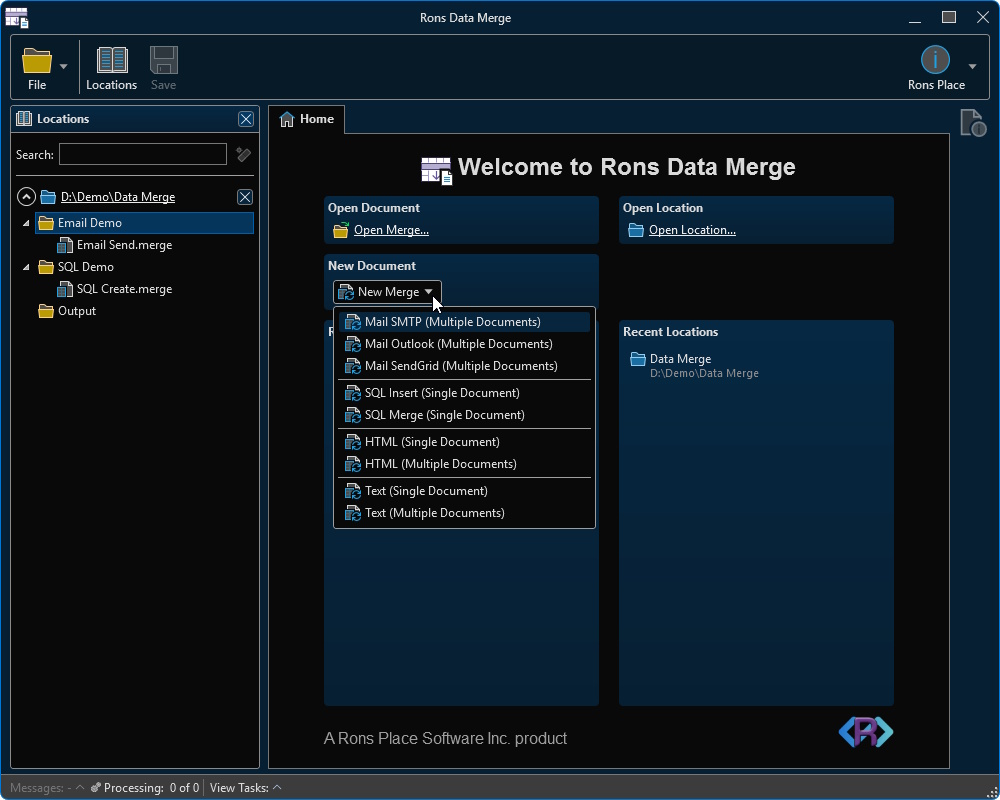
Each new merge begins with a type. The same contact list might become one long report, fifty separate files, a SQL load script, or fifty politely individualised emails—the application does not insist on picking a personality.
| Kind | What you get |
|---|---|
| Text, one document | Header once, body for every row, footer once → single file. |
| Text, one file per row | Whole template per record, numbered into an output folder. |
| HTML, one document | Same header / body / footer pattern → one HTML file. |
| HTML, one file per row | One HTML file per record. |
| SQL Insert |
One script; typically an INSERT per row from column values.
|
| SQL Merge |
One script that loads rows and emits a MERGE against a table you
name.
|
| One message per row via SMTP, Outlook, or SendGrid. |
Sample templates ship with each type. You edit them in place rather than starting from a blank screen and immediate regret.
The Data Grid
Before the template matters, you need a table. Open CSV, PSV, TSV, TAB, or plain text, or paste a table from the clipboard. Delimiter profiles govern separators, quoting, header rows, and file associations; encoding and region settings live with the document and appear in Document Properties.
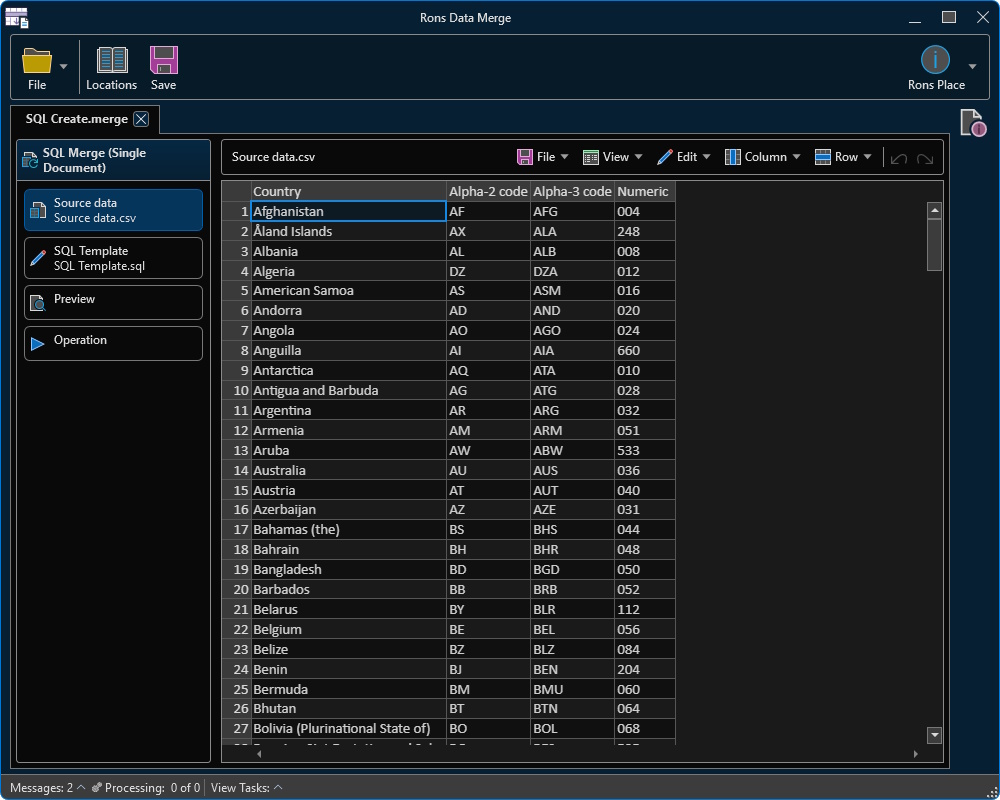
Edit cells in the grid. Rename, add, and delete columns. Insert, append, or delete rows. Sort the view, find text, and copy a selection—including as HTML or Markdown. The column names in that grid are the names your template may reference; rename a column and the template language follows suit.
Templates That Follow the Columns
A template is the document with one row’s worth of data filled
in. Insert a column field for the current row, or use a column
loop so output tracks whatever columns exist—handy when someone adds
Mobile on Tuesday without telling you.
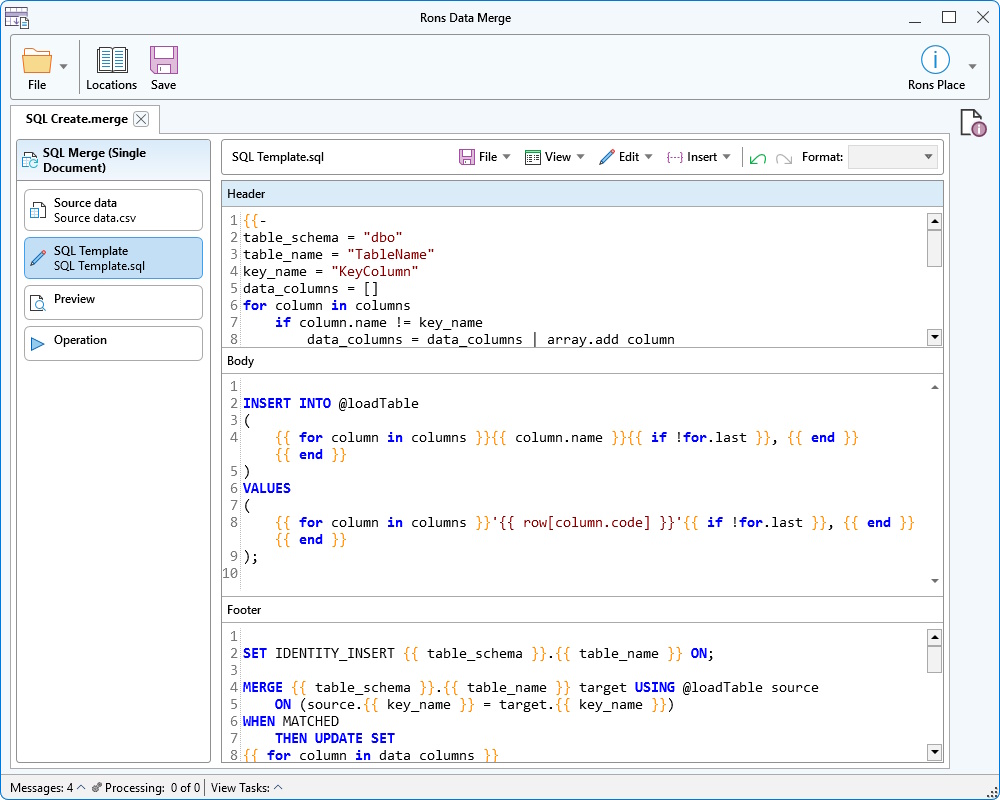
Single-document templates split into three parts:
- Header — written once at the start.
- Body — written for every row.
- Footer — written once at the end.
Letters, HTML tables, and SQL scripts all fit that shape rather well.
Multiple-document templates are the entire file for one row. The merge writes them once per record into the output folder, with optional overwrite behaviour if a file already exists.
Templates may be text, HTML, Markdown, or SQL. They are written in Scriban; the Insert menu lists fields from the current columns so you need not memorise marker syntax on day one.
Preview, Then Commit
Wisdom—and our marketing copy—both recommend looking before you leap.
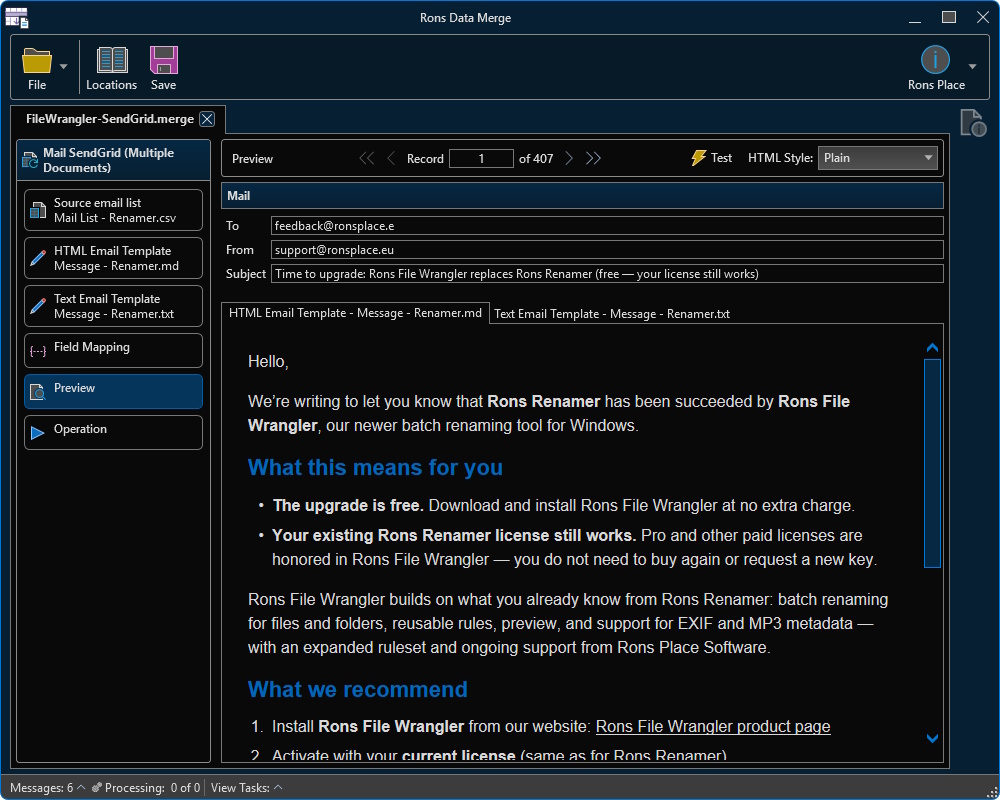
- Step through first, previous, next, and last row and read that record rendered in the template.
- HTML and Markdown templates can be shown as a page, in styles such as Plain, Editorial, Newsletter, Soft, or Brief.
- Mail merges can send the current record to a test address before the full list goes out.
Start writes files or sends mail. Stop cancels a run still in progress. Mail merges keep a log of what was sent; a message history reports what the run said along the way.
Mail from the List You Already Have
Each mail merge carries two bodies: an HTML template and a plain-text template for the same message. Map columns to addresses and subject, then choose the exit route:
- SMTP — server, port, credentials; map To, From, and Subject.
- Outlook — an Outlook account on this PC; map To, CC, BCC, and Subject.
- SendGrid — API key; map To, From, and Subject.
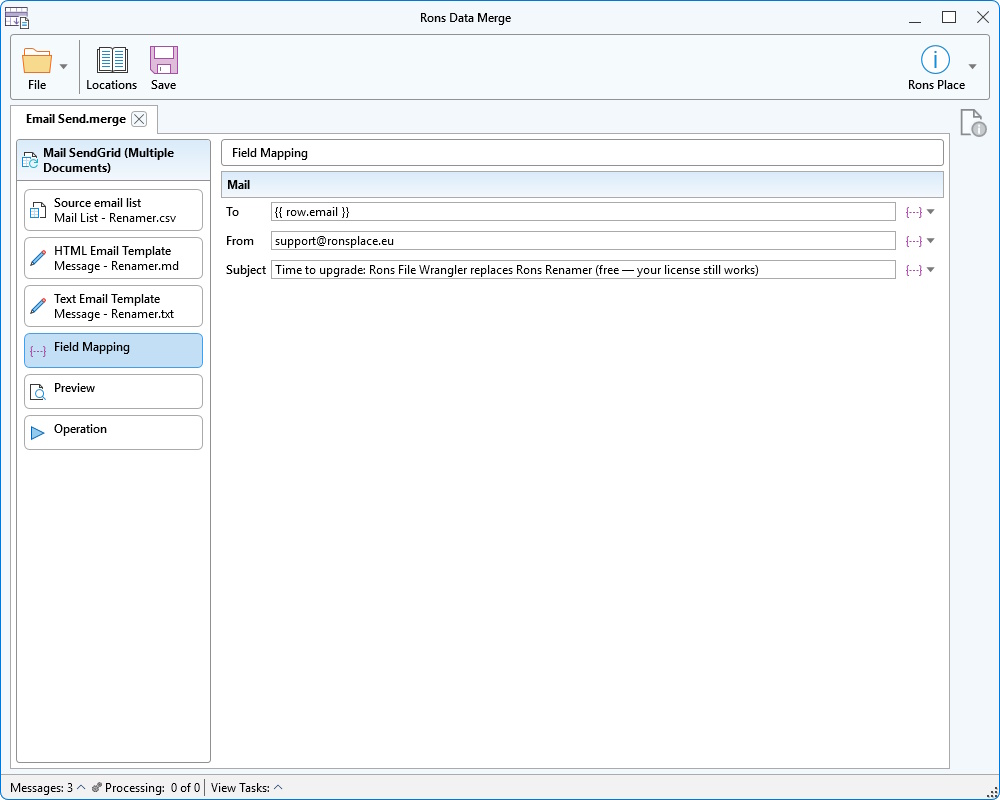
The merge validates required fields and settings before a run starts, which saves a certain amount of public embarrassment.
Locations, Appearance, and the Rest
Locations on the side let you open a folder and move between
data files, templates, and saved .merge projects without a treasure
hunt in File Explorer. Light and dark modes, accent colours, and separate fonts
for the grid and template editor keep the window tolerable during long sessions.
A searchable command list and editable shortcuts reward the
keyboard-inclined.
A Lite edition exists: you may load and preview without limit, but a run is capped at 250 rows and carries an advertising banner—see download options if you want to try before you buy.
Conclusion
Rons Data Merge ties together data, templates, preview, and output in one Windows workspace: one document or many, HTML, SQL, or mail through SMTP, Outlook, or SendGrid.
Most people open or create a merge, confirm the grid looks sane, adjust the template, preview a worrying row, and then press Start. For a shorter path through that first session, continue with the Rons Data Merge Quick Start Guide. A free Lite version is available on the download page if you would like to try the application on your own machine.
Related Information
Rons Data Merge
General


