
Keeping Your Bookmarks After Pocket - Rons WebLynx
For many people, Pocket was where interesting links went to wait. Then, in 2025, Mozilla closed it. Pocket stopped working on 8 July 2025, users were given a few months to export their saves, and after the export window closed the remaining data was deleted.
If you exported your Pocket list in time, you have a file with years of saved links. This article explains what to do with it, and what the experience teaches about keeping your own information.
What Pocket Was, and What Rons WebLynx Is
It helps to be clear first.
Pocket was a read-later service. It saved a copy of each article so you could read it later on any device.
Rons WebLynx is a bookmark manager and research organiser for Windows. It keeps your links, with folders, tags, ratings and notes, in files on your own computer. It does not store offline copies of articles.
So Rons WebLynx is not a Pocket replacement for reading articles on a phone. It is a very good home for the links you collected in Pocket, especially if you want to sort them, check which still work and keep them safe for the long term.
Step 1: Find Your Pocket Export
Pocket exports arrived as a download link by email. Depending on when you exported, you will have:
- An HTML file (older exports), or
- A .zip file containing a CSV file with your saved links (the final exports).
If you have a .zip file, unzip it first: Rons WebLynx imports the CSV file, not the .zip.
Step 2: Import Into Rons WebLynx
- Install Rons WebLynx from the Download page and create a new file, for example Pocket Archive.
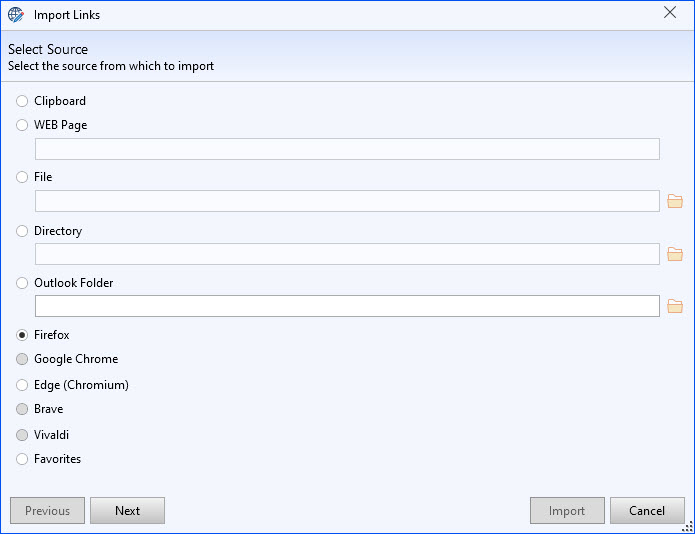
- Open the Import window from Management/Import (or New From Import... on the start page).
- Choose File as the source and select your Pocket export file. WebLynx extracts all the links it contains.
- Choose a folder for the links, for example From Pocket.
- Add a tag such as Pocket so you always know where these links came from.
- Check the preview, untick anything you don't want, and click Import.
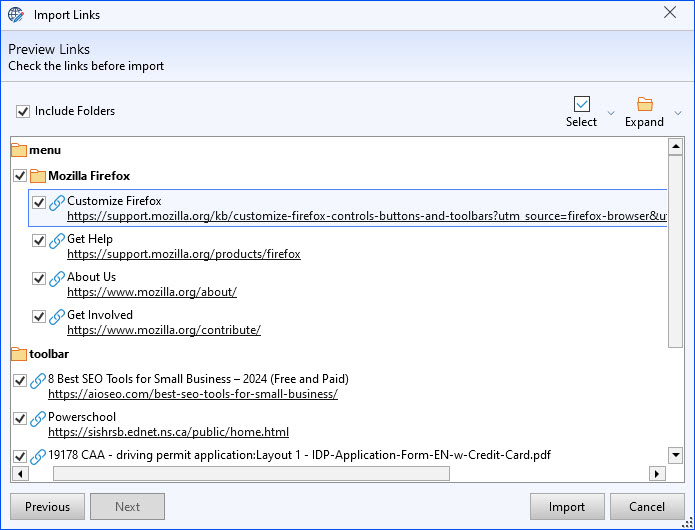
More detail on every import option is in Importing and Exporting.
Step 3: Clean Up
A Pocket list often contains years of links, and some of them will no longer work.
- Broken links: WebLynx checks links and shows pages that are gone in the Missing view, so you can delete or replace them.
- Duplicates: the same article saved twice is easy to find with the Duplicate Bookmarks view.
- Sorting: move links into folders by topic and add tags, or let Automatic Link Filing rules do it for you.
- Notes and ratings: add a short note on why a link mattered, and a star rating for the best ones.
Step 4: Keep It Safe
The lesson from Pocket is simple: if your information lives only in an online service, you depend on that service.
With Rons WebLynx:
- Your collection is a file on your computer. No account, no cloud, and nothing that can be switched off.
- You can encrypt the file with a password.
- You can back it up like any other document, or export it to standard bookmark HTML or XML.
Following Websites Instead of Saving Every Article
Many people used Pocket to keep up with favourite blogs and news sites. In Rons WebLynx, any folder can become an Active Folder that follows a website's RSS or Atom feed and collects new links automatically. See Following Website Updates with RSS Feeds.
Conclusion
Pocket is gone, but the links you saved don't have to be. Import your export file into Rons WebLynx, clean it up, and keep it on your own computer where no service closure can take it away.
The free Lite edition has all features and saves up to 2,500 links. For larger Pocket lists, Rons WebLynx Pro removes the limit for a one-time purchase. The price is on the product page. Download it from the Download page on Rons Place Software.


